This is our obligatory tips & tricks page. Boring if you’ve read a couple, but if you haven’t, we tried to focus on a good presentation of well known facts ;).
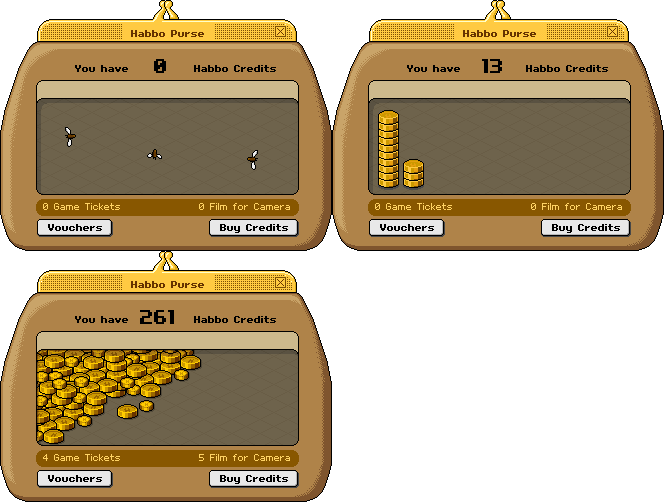
Design is meant to be looking like the Habbo purse did. Past sense, as in v24 the purse got integrated into the catalogue. Quick, let's save its interface for history’s sake. This is what it looked like:
Anyway, click sections on the right.
Typing some regular emoticons will help showing emotions of your Habbo. Nikkie demonstrates:
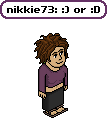
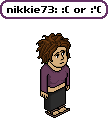
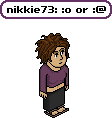

 We’re just waiting for some version of the hotel where we will be able to use ‘:p’ and stick out our tongue… In v35 and after, or maybe before even, you can enter ‘o/’. This will make your Habbo wave.
Also, there used to be a speech preference dropdown, where you could set your Habbo to ‘whisper’ (only heard nearby), ‘speak’ (heard to more people) and ‘shout’ (bold text, heard across room). This preference is gone at the moment, and probably will not return (since there’s replacements now). But the old trick to do a one-time shout is still there. Hold down the SHIFT key while pressing ENTER, and you’ll shout.
There’s new ways to do the same though. When you type:
:tell USERNAME MESSAGE
:speak MESSAGE
:shout MESSAGE
First line is whispering, note the username, now with added privacy. Also, with added persistence. After hitting ENTER your textbox will still be filled with ‘:tell USERNAME ’ so you can directly continue whispering to that person. Clever. Second line is kinda irrelevant, and third a way to avoid the SHIFT key. Do note these are language specific (and case sensitive), these are from UK hotel, commands differ from hotel to hotel (like in Netherlands it’s ‘Fluister’, ‘Praat’ and ‘Schreeuw!’ respectivily). We might display a list of translations here some day.
An old timesaver, holding down the ALT key while selecting furniture, one used to be able to move it around quickly, and keep oneself from running after it all the time. Still working, yet a little different. One used to be able to release the mouse/click when moving the furniture. Nowadays, you have to keep your mouse down. So, click ALT and select the furniture. Release ALT, but not your mouse click, move furniture.
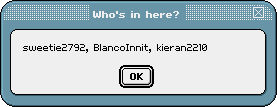
Joining HC will get you two useful commands. Type these (a colon + command) in your speech bar and a dialog will appear. These were intended for use by staff only, in early years, later added as bonus for HC members.
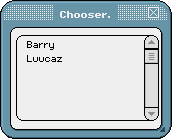
:chooser
…will get you this dialog, detailing who’s in the room. Click any name to quickly select that person (or pet).
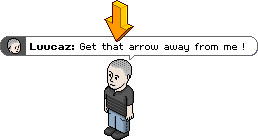 Not HC ? You don’t really need to be envious of HC members and the ‘:chooser’ command. Someone in the door flooding your room ? Click the part of their speech bubble with their head in to quickly select that person and click ignore/kick.
Nice detail not everyone is aware of, the outline color of these speech bubbles/background color of the head is taken from the color(s) of the shirt a person is wearing. Another command:
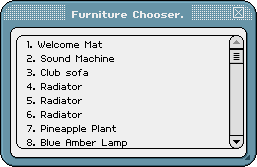
:furni
…a similar command that will give you a list of all furniture in a room. Very useful if you want to pick that one piece out of your stacking masterpiece.
Since v22 a couple of new commands were introduced, BETA phase since erased those (see past tricks). BETA also brought some new ones though. A very useful one is:
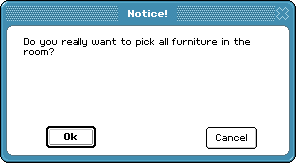
:pickall
Will get you a warning, when clicked OK, all furniture in your room is transferred to your ‘inventory’ (oh, the simple days we just had a hand…). Great for huge moving operations. There’s two other ones, less useful.
:news
…will get you the news dialog that you get annoyingly much in your face anyway and:

:v
…which gives a speech bubble with some internal version number. Probably only meant for technical staff anyway.
:zoom (x)
Will take you to a zoom of your choice, introduced to hotels in late November 2014. :zoom 1 will be the original zooming rate, whereas the picture accompanying this is :zoom 13. You can go as far as you want... scary right. This, by the way, eradicated the old zooming button. :zoom alone will bring you to an blurry version of the old small view - quantity surely over quality here...
Then, as if by magic, 2015 came and allowed one to use your mouse scroller to change the view of your zoom. It implements the same way the :zoom (x) works, just takes out the command and gives you an easier way of doing things. If you’re using a Mac, you can’t zoom - they haven’t yet allowed the ’pinch’ to work inside the hotel. Progress!
Want to take a screenshot of your Habbo events ? If you’re on a Windows PC, your keyboard has a “Print Screen” key - it will put a screenshot of your screen on the clipboard, so you can paste it into any graphics program. If you hold down the ‘ALT’ key while hitting that key, it will not capture whole screen, but just the active window (better).
If you’re on a Mac(intosh) press Command-Shift-3 to capture the entire screen, or use Command-Shift-4 to drag with the mouse and select a smaller capture area. Your screenshots will be saved on your desktop (format seems to differ with OS version, we don’t use Macs). If you want the screenshot on the clipboard instead of saved, hold down the Control button too (e.g. Command-Shift-Ctrl-3).
From the web: “Macintosh computers running OS X include a screen capture utility called Grab that is quite a bit more versatile that Print Screen. Grab is located in the Utilities folder inside your Applications folder. Use the menus to capture the whole screen or just a small section of it. You can even set a 10-second delay so you have time to arrange things on the screen perfectly!”
If you’re running a fansite, or are a reporter or something, taking a bunch of screenshots quickly can come in handy. I’m not aware of many freeware tools on the Mac (but it might be there), on Windows there’s loads of tools to get this done. A very decent tool, freeware, is done by an old friend, Darrell L. aka redllar.¹ It’s called FGWndGrab, and just lets you follow that infobus session or VIP visit. Hit your key combination everytime you want a screenshot and they get done and saved without you doing anything, any format, different options for selected parts, with watermarks, comments, very fullfeatured.
¹ Above link is a direct download link. Redllar has regrettably taken down his page, while I (Luucaz) still enjoy his tools. Couldn’t resist to share this one, please don’t spread/make available, just enjoy.
The font in which for instance spoken text, subtitles and missions are displayed is called ‘Volter (Goldfish)’. It has a couple of special, grafical characters inside that are often used - so-called ‘Altcodes’. For these you need to hold down your left ‘ALT’ key on your keyboard (check if ‘numlock’ is enabled (little light on your keyboard), else press corresponding key). While you do that type the numbercode on the ‘numpad’ (block with numberkeys on the right). Release the altkey and the symbol should be visible.
| 0124 | 124 | SHIFT + \ | = |  |
| 0131 | 159 | = |  | |
| 0132 | 0213 | = |  | |
| 0134 | = |  | ||
| 0135 | = |  | ||
| 0145 | = |  | ||
| 0149 | 263 | 7 | = |  |
| 0151 | = |  | ||
| 0153 | = |  | ||
| 0162 | 155 | 667 | = |  |
| 0165 | 157 | = |  | |
| 0169 | = |  | ||
| 0170 | 166 | = |  | |
| 0172 | 169 | = |  | |
| 0174 | = |  | ||
| 0176 | 248 | = |  | |
| 0177 | 241 | = |  | |
| 0178 | = |  | ||
| 0179 | = |  | ||
| 0181 | 230 | = |  | |
| 0182 | 276 | 20 | = |  |
| 0186 | 167 | = |  | |
| 0187 | 175 | = |  | |
| 0188 | = |  | ||
| 0189 | = |  | ||
| 0190 | = |  | ||
| 0191 | 168 | = |  | |
| 0245 | = |  | ||
| 0247 | 246 | = |  | |
| 0171 | 174 | = |  | |
| 0164 | 271 | 15 | = |  |
| 0167 | 277 | 21 | = |  |
| 0161 | 173 | = |  |
Depending on language- and keyboardsettings codes might/might not work. Try the alternatives. Want them in a popup ?!
There used to be quite a couple more keyboard tricks, and text commands to enhance your Habbo life, that got removed, mostly in BETA phase. Since we archive almost anything, here’s those, just to remember and old time’s sake…
Holding down the SHIFT key while clicking on the “Go” field of public spaces (only) in the navigator used to not take you there, but got you a dialog detailing the people that are inside that space. The “Go” button is gone these days, and the functionility also, it seems. For histories sake then:
For completeness’ sake, there used to be another command, clearly not intended for users either, called ‘:performance’. Gave some info on how responsive hotel was. This is gone since years though.
And yes, staff & moderators have some more commands helping them keep things neat and safe (if interested, here).
Some commands since v22 lasted only a little while, like we had
:events
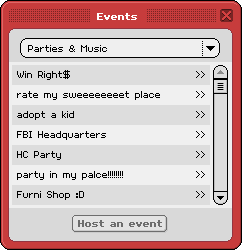
…did what it says, popped up the events window, and worked for everybody. But no events button there anymore, and the events integrated in navigator, this command stopped working.
:im USERNAME MESSAGE
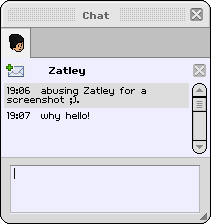
Another new command since v22 was ‘:im’ (Intra messaging). Didn’t work without name of a Habbo, content of the message was optional. Zatley notes you could now send messages to offline friends ;). And starting v24 there was ‘:ig’, which would open the dialog to free gaming. These are now also not working anymore, might return though.